Zombie AI Video Failed? Fix Upload & Render
Zombie AI video stuck processing or rejected after photo upload? Diagnose image review, provider errors, failed renders and what to do before retrying.
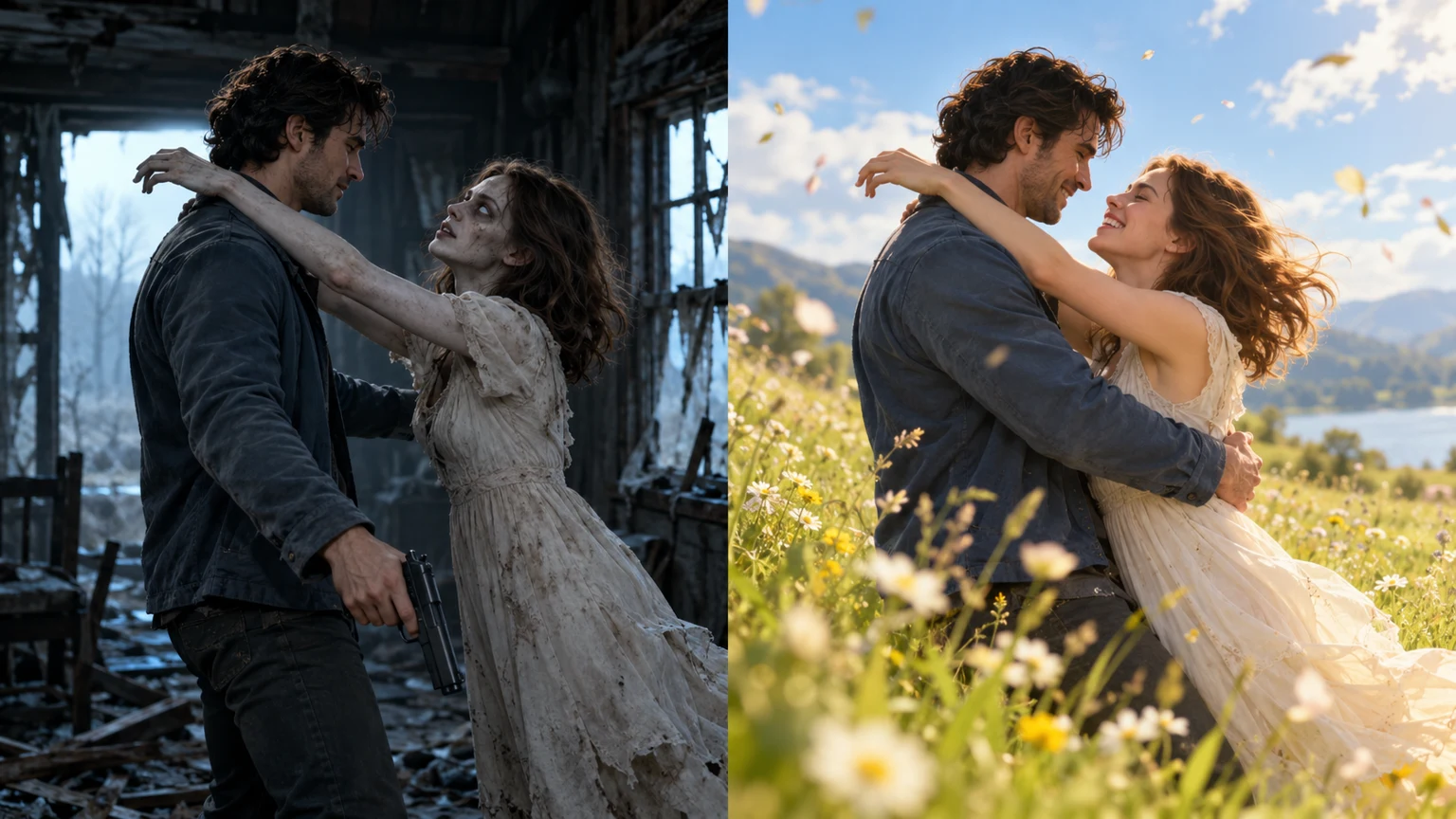
An AI zombie video can fail before generation, while it is processing, or after the provider has rendered a result. Those are different problems and need different next steps. If you used two portraits to make a zombie love story, first check the order or job status; then identify whether the issue is the upload, reference-image review, provider processing or final output review. Do not buy another generation or repeatedly submit the same photos until you know which stage failed.
This guide separates a rejected request from a slow one, explains the limits of retrying, and shows what information support needs to investigate. It applies to ZombieTrend's two-photo workflow; controls and policies differ on other services.
Quick diagnosis: what does the message mean?
| What you see | What it can mean | First useful action |
|---|---|---|
| The photo never appears in the upload preview | A browser, upload or file-format problem | Check the file opens locally, try a supported format and inspect the preview before submitting |
| “May contain a real-person likeness” or a similar rejection | A model or safety policy rejected the reference image | Do not try to defeat the filter; consult the provider's permitted-content rules and contact support with the exact message |
| An order remains processing | A job may be queued, running, awaiting a callback or not yet reconciled | Refresh the private order page and record how long the status has remained unchanged |
| “Provider error,” “timeout” or generation failure | The video service did not successfully complete the request | Keep the order number and error wording; check the site's stated resolution/refund procedure |
| A video is delivered but people look different | A quality or identity-consistency issue, not necessarily a failed job | See the face-distortion guide and evaluate the actual MP4 |
| An MP4 exists but does not save on mobile | A playback or download issue | Try the original MP4 link and another browser, then report your device and error |
Important: A screen that says processing is not proof your browser caused the failure. The order can still be active on the server even when the browser tab is closed.
1. Check the two reference photos before submission
ZombieTrend's standard love-story flow uses Photo 1 as the survivor and Photo 2 as the infected partner. Use one permitted portrait per slot, with the face visible and a similar level of lighting. This helps the model distinguish the characters; it does not guarantee that the model will accept or preserve either face.
Before you submit, confirm:
- Both upload previews show the intended people and the correct roles.
- Each photo is a supported file type according to the uploader. Open the original file locally if a preview is blank.
- You have the rights and the person's consent to use each photo.
- The people and subject matter comply with the provider's current image and video policy.
- There is no unrelated third person in the frame whom the model could mistake for the intended character.
If the system rejects a realistic portrait, do not assume the image is defective. Some video models restrict recognizable human likenesses even when the photo is clear and the person has consented. The policy decision may occur upstream of the website through a model provider. Editing a face to evade screening is not a reliable or appropriate fix.
If a provider supports fictional or clearly animated subjects and its terms allow them, those may be a separate compliant creative option. Do not represent an invented character as a real person.
2. Understand image review versus generation review
A two-photo video request can undergo more than one check:
- Input review: the upload or prompt is checked before the provider starts generating.
- Provider review: the video model may apply its own restrictions to reference images or a prompt.
- Rendering: a request enters the provider queue and attempts to generate video frames and audio.
- Output review: a completed result may be examined before delivery.
Passing one review does not guarantee the next stage will pass. A rejection tied to content[0] or content[1] commonly points to the first or second reference item in a two-photo request. It does not, by itself, establish that your browser, payment, or website is broken.
The exact review stages and rules can change with provider configuration. Rather than guessing the cause from a generic failure banner, keep the complete message and the order reference for support.
3. What to do when the video is stuck on “processing”
Processing means the site has not yet shown a final result. It does not automatically mean “failed,” and there is no universal rendering time that applies to every job.
Follow this sequence:
- Open the private order page from your original confirmation or your account, rather than starting another purchase.
- Check whether the status changes after a normal refresh. Avoid rapid repeat clicking on Generate.
- If an error is displayed, capture the exact wording and the approximate time it appeared.
- If the status remains unchanged for an unusually long period, contact support@zombietrend.art with the order number.
- Keep any original receipt or confirmation until the request is resolved.
A page that is slow to update may be waiting for a provider callback or status synchronization. Only an examination of the actual task record can distinguish a delayed status update from a backend timeout. If support asks for more details, share the order number, not passwords, session cookies or payment card details.
4. If the render failed after payment
Do not conclude that payment must have been refunded automatically. A failed video request and a completed card refund are separate events. Check the order page and the refund policy for the site's current process. If the delivery is missing or the failure is confirmed, request review through support.
Useful details for a support request:
- Order number and approximate submission date/time, including time zone.
- The URL or feature used, for example the main two-photo generator.
- Selected duration, orientation and quality.
- The visible final status and the exact error text.
- Whether both reference-image previews showed correctly before you submitted.
- The operating system and browser, only if the problem involves uploading, previewing or downloading.
You do not need to post private portraits or order information in a public comment or social-media thread.
5. If a video was generated but the result looks wrong
A successful delivery with facial drift is different from a technical failure. Two characters hugging, turning rapidly or switching locations can be challenging for generated video. Do a practical check before deciding whether to use the clip:
- Watch the opening, the middle of the embrace and the ending separately.
- Compare each person's broad resemblance with the permitted input photos.
- Look for face swaps, unexpected extra people, distorted fingers or missing hands.
- Verify the audio in the actual downloaded file; a prompt requesting music cannot guarantee the result.
- Confirm the MP4's frame orientation matches your intended platform.
For visual-quality troubleshooting, follow the five practical face-consistency fixes. For a visible example of what the current workflow can actually produce, inspect the real Seedance Mini sample, including its original MP4 and disclosed settings.
6. Should you retry the same prompt?
Retry only when you have identified a change that addresses the actual problem. A render timeout may merit provider or support review; a wrong photo order merits correcting the slots; a blank browser preview merits fixing the upload. A provider's content-policy refusal is not something to bypass by making the same prohibited request again.
If the output was simply artistically disappointing, reduce the amount of action requested in a short clip. For example, one clear encounter followed by a simple embrace may be easier to evaluate than a long sequence with multiple weapons, location changes, crowded scenes and complicated hand movement. These are creative suggestions rather than promises of better model performance.
ZombieTrend currently offers 4–15 second video duration choices (12 seconds is the default), 480P or 720P and 9:16 or 16:9. Choose only options actually shown in your checkout. A longer setting does not guarantee better face consistency.
7. What to check before sharing the result
When the finished MP4 is available, inspect the video and sound all the way through. Only use portraits for which you have permission, and label realistic AI-generated footage on the destination platform. For help choosing an audio track and matching the emotional flashback cut, see the Zombie AI trend music guide.
The normal creative path is to use the ZombieTrend generator with compliant source images, review the output, and then download the file. If the order itself has failed, resolve that existing order before beginning another one.
Questions creators actually need answered
Why does my zombie video say “processing” after I close the tab?
The server-side job may still exist independently of your browser session. Reopen the order page and check the status before assuming you must submit another paid request.
Why did a clear photo get rejected?
Image quality and safety permission are different checks. A model may restrict realistic likenesses or other content even when a photo is sharp and properly uploaded.
Does content[1] mean my second image caused the problem?
It usually denotes the second input item in the provider request. Ask support to check the exact provider response before drawing a definite conclusion.
Can I use two photos of the same person?
Some creative workflows permit that, but the intended ZombieTrend love-story template is designed for two characters. Check the current provider's consent and likeness rules before using any reference portraits.
Why is the payment completed but no video delivered?
Payment and rendering are separate systems. Keep the order number and contact support for a status check; do not assume that a card charge proves a successful render or that a refund is already complete.
Why does the video have a different face after the flashback?
The model can lose character consistency across a dramatic scene transition. This is a visual-generation issue rather than proof the file failed to render.
Is the output guaranteed to have the same music as the sample?
No. An audio-enabled workflow and a requested soundtrack do not guarantee a particular song, mix or timing. Inspect the delivered MP4 before posting.
What should I do if the MP4 will play but will not download on iPhone?
Use the original MP4 link if your order page offers it, try the browser's Share or Save options, and report the device and browser to support if the issue persists.
Next: Try the generator · See real sample · Learn about face distortion · Read the refund policy
Editorial note: This article describes possible causes, not a diagnosis of a specific reader's order. Provider safety rules and processing behavior can change. Last reviewed October 27, 2026.
准备制作自己的视频?
使用两张人物照片,选择场景并生成你自己的短片。