Post a Zombie AI Video on TikTok & Reels
Post a zombie AI video on TikTok or Reels: download your MP4, check 9:16 framing, choose music, add AI-content labels, and preview before sharing.
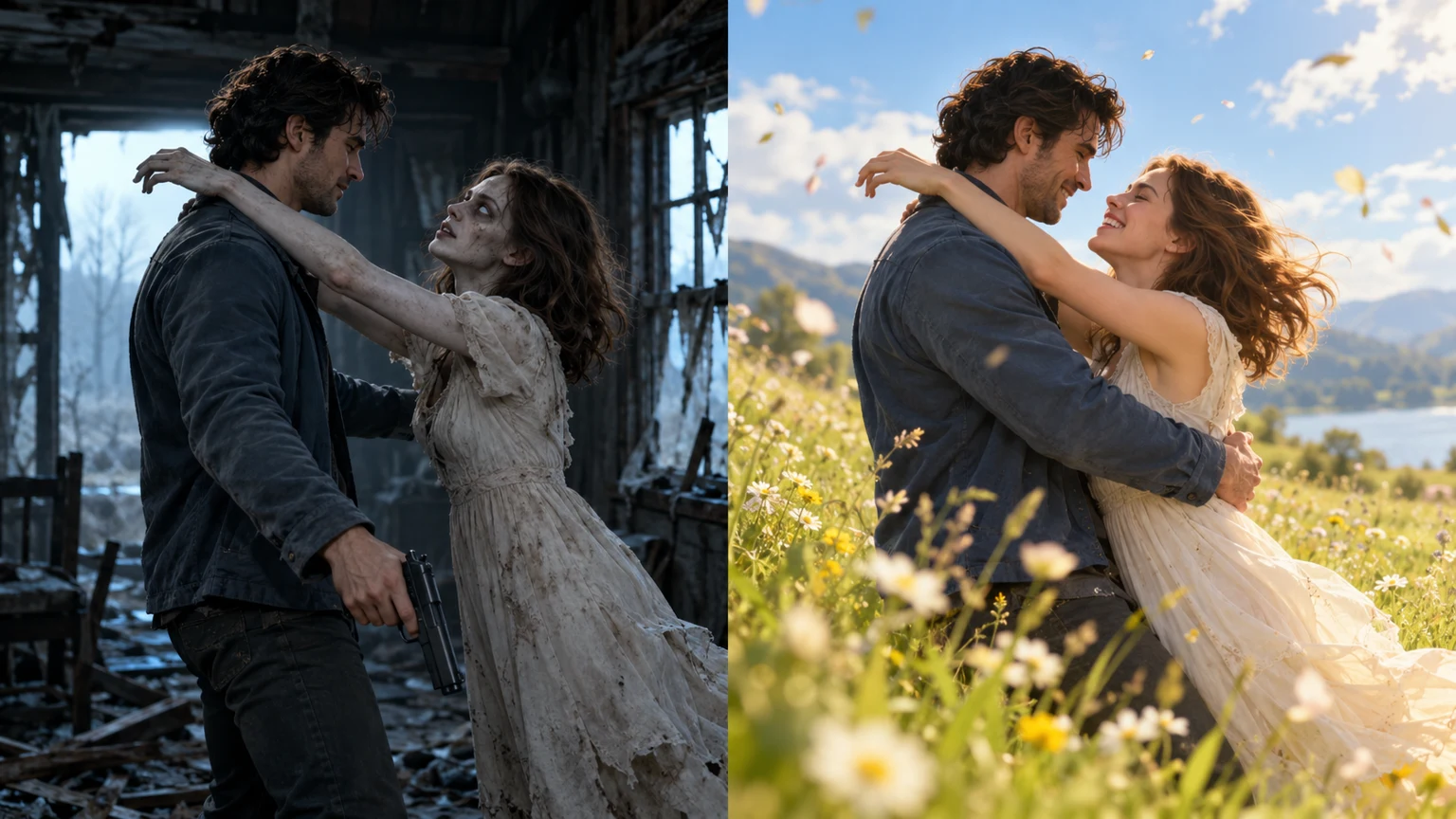
To post a zombie AI video on TikTok or Instagram Reels, start with your downloaded MP4, check that the right two people appear, choose a vertical crop, add audio you are allowed to use, and clearly disclose that the realistic scene was AI-generated. A good zombie love-story clip has an unmistakable emotional turn: the survivor hesitates, the infected partner approaches, and the video cuts to a happier memory.
Making the video and preparing it for social media are separate jobs. This guide begins after your zombie AI clip has rendered. For a two-photo creation walkthrough, use the photo-to-zombie-video guide instead.
A simple five-step posting checklist
- Download and watch the original MP4. Make sure the whole story is present and the file has actually finished generating.
- Check the people and consent. If faces are wrong or the clip depicts someone who did not agree to be included, do not post it.
- Frame for vertical viewing. Use a 9:16 export where available and inspect the crop in the destination app.
- Choose music and captions. Set the emotional change to the hug or flashback and use a sound you have permission to publish.
- Enable AI disclosure and preview again. Follow the platform's current AI-content labeling rules before tapping Post or Share.
1. Start with the actual video, not a sample thumbnail
A still thumbnail can look convincing while the delivered video contains unintended face changes or missed transitions. Play the downloaded MP4 from start to finish, with sound enabled, and check the key moments:
| Moment | What to inspect | Why it matters |
|---|---|---|
| Opening | Both characters are recognizable and the situation is clear | Viewers should understand the story without a long introduction |
| Standoff | The survivor and the infected partner have distinguishable roles | Role confusion makes the emotional beat hard to follow |
| Embrace | Hands and faces stay acceptable to you | Close physical interaction can create visual artifacts |
| Memory cut | It is clear that the scene has changed to an earlier, happier time | A readable contrast is the point of the trend |
| Ending | Sound and picture end cleanly | Avoid clipped music or an unexplained black frame |
ZombieTrend's current generator uses two reference portraits, Seedance 2.0 Mini, 4–15 second outputs (12 seconds selected by default), and 480P or 720P in 9:16 or 16:9. Those are website settings, not guaranteed cinematic shot timings. The real Seedance Mini example shows a five-second, 480P output you can inspect before creating your own.
2. Make the framing fit TikTok and Reels
For a full-screen vertical post, 9:16 is usually the simplest starting choice. ZombieTrend offers this orientation in the generator. If you already generated 16:9 landscape footage, you can reframe it in an editor, but do not crop away either character just to fill the screen.
Before publishing:
- Preview in the actual mobile app instead of relying only on a desktop player.
- Keep faces and important gestures away from the very edges of the frame.
- Leave space for app interface elements, captions and account information.
- Inspect the generated resolution itself; upscaling does not restore details that were never generated.
- Use the original file when possible rather than repeatedly exporting and recompressing it.
A 720P option does not automatically mean the downloaded clip will survive every platform's re-encoding with identical sharpness. Check the finished post after it becomes viewable.
3. Pick music without assuming the trend has one official song
The zombie love-story trend often pairs a frightening opening with a softer, nostalgic turn. However, different uploads may use different audio. A clip you saw on TikTok or Reels is not proof that every remake contains the same track.
A practical editing sequence:
- Listen to the audio in your generated MP4. Decide whether the existing sound helps or distracts.
- If you want a different track, find it using the platform's licensed sound library or another properly licensed source.
- Place the shift to the warm memory near a meaningful musical transition, without forcing the visual cut to a precise second that the AI did not produce.
- Balance the music against existing effects so the moment of hesitation remains understandable.
- Replay the entire video after edits and confirm the audio and video both finish naturally.
Do not download a creator's copyrighted song from another video just because it is associated with the trend. The Zombie AI trend music guide explains how to identify a sound on its original post and distinguish platform music from generated audio.
4. Label realistic AI video on TikTok
TikTok's official guidance says realistic AI-generated content should be labeled. For an uploaded AI-generated video, the platform's help page describes opening the upload flow, proceeding to Next, then More options, and turning on the AI-generated content setting. The location of a control can change as the app updates, so follow the wording you see in your current app.
If your video depicts recognizable people doing fictional things, the disclosure matters especially. It tells viewers they are looking at a created story rather than actual footage. According to TikTok, enabling the label does not by itself reduce distribution when a post otherwise complies with its guidelines; the label is not permission to violate consent or impersonation rules.
Official source: TikTok: AI-generated content.
5. Disclose AI use on Instagram Reels too
Meta describes AI info labeling for AI-generated and substantially altered media on its platforms. The exact interface varies by account and current app version. When publishing realistic synthetic footage, disclose AI use wherever the current Reels flow offers that option, and use a transparent caption as well.
Do not imply that a staged zombie encounter happened in real life. Do not publish real-person likenesses without permission or make the post look like evidence of a true emergency.
Official source: Meta's approach to labeling AI-generated content.
6. Write a caption that explains the story
A useful caption tells viewers what happens emotionally, without claiming the events are real. Try one of these editable examples:
One of us changed. The other couldn't let go. 🧟❤️ AI-generated zombie love story.
The world ended, but the memory didn't. Two photos, one fictional AI zombie short.
When the scene cuts back to the summer we remember. AI-created, with permission from both people shown.
Hashtags such as #ZombieLoveStory, #AIVideo, and #ZombieTrend may describe your content, but no hashtag ensures reach. Use only tags that truthfully match the clip, and avoid packing unrelated trending phrases into the caption.
7. What if the downloaded video is not good enough to post?
You do not have to publish a render simply because it finished. If the face changes dramatically, the hands blend together or the flashback is confusing, consider a different edit or a new compliant creative attempt. First check the face-distortion guide. If generation never completed, use the AI zombie video failure guide rather than treating it as an editing problem.
If you plan to regenerate, review the scene and duration settings on the website and any applicable payment terms before ordering. A prompt can request specific camera movements, emotional expressions and sounds, but does not guarantee them.
8. Questions to settle before you press Post
Is 9:16 required for a zombie AI video?
No, but it is a useful default for vertical TikTok and Reels viewing. A 16:9 clip can also be shared if you are happy with its framing and the destination app's presentation.
Can I upload a 480P AI video?
You can review and upload a file where the platform accepts it, but expect lower fine detail than 720P. Always check the post preview and avoid advertising a 480P render as HD 1080P.
Does ZombieTrend include the same viral song automatically?
No specific commercial track is guaranteed. The AI workflow can produce audio, but you should listen to the actual MP4 and use appropriate licensed music if needed.
Should I disclose that the zombie couple is AI-generated?
Yes, especially if it features realistic-looking people. TikTok provides an AI-generated label, and Meta has AI-info disclosures. Follow the current platform rules and consent requirements.
Can I add music inside TikTok or Instagram instead of the generator?
Yes, if the platform offers the sound and your account has the necessary usage rights. Check how existing generated audio mixes with the added track.
How do I keep text from covering the couple's faces?
Put captions away from faces and check the mobile preview with the platform's interface visible. What looks centered in a desktop editor can be obstructed on a phone.
Can I use somebody else's portrait in the trend?
Only when you have a lawful basis and permission to use that person's likeness, and the provider and platform permit the use. Do not use public figures or private individuals in misleading scenes.
Why does my downloaded MP4 look different from the preview?
The preview may be a thumbnail or a re-encoded player copy. Inspect the actual original MP4 and, after posting, the file as displayed by the destination platform.
What happens if my AI zombie video never downloads?
Check the private order page and its available MP4 links. If the video is missing or errors persist, contact support@zombietrend.art with the order number and device details.
Next: Make a two-photo zombie video · Get an editable story prompt · Find zombie trend music · Watch the real sample
Editorial note: This is a publishing checklist, not a promise of platform reach. TikTok and Instagram controls and policies can change. Last reviewed October 27, 2026.
准备制作自己的视频?
使用两张人物照片,选择场景并生成你自己的短片。