Turn Photos Into an AI Zombie Video: Step-by-Step for TikTok
Learn how to turn one selfie or two portraits into moving zombie content, what is different from a static filter, how to avoid face drift, and how to share a vertical MP4.
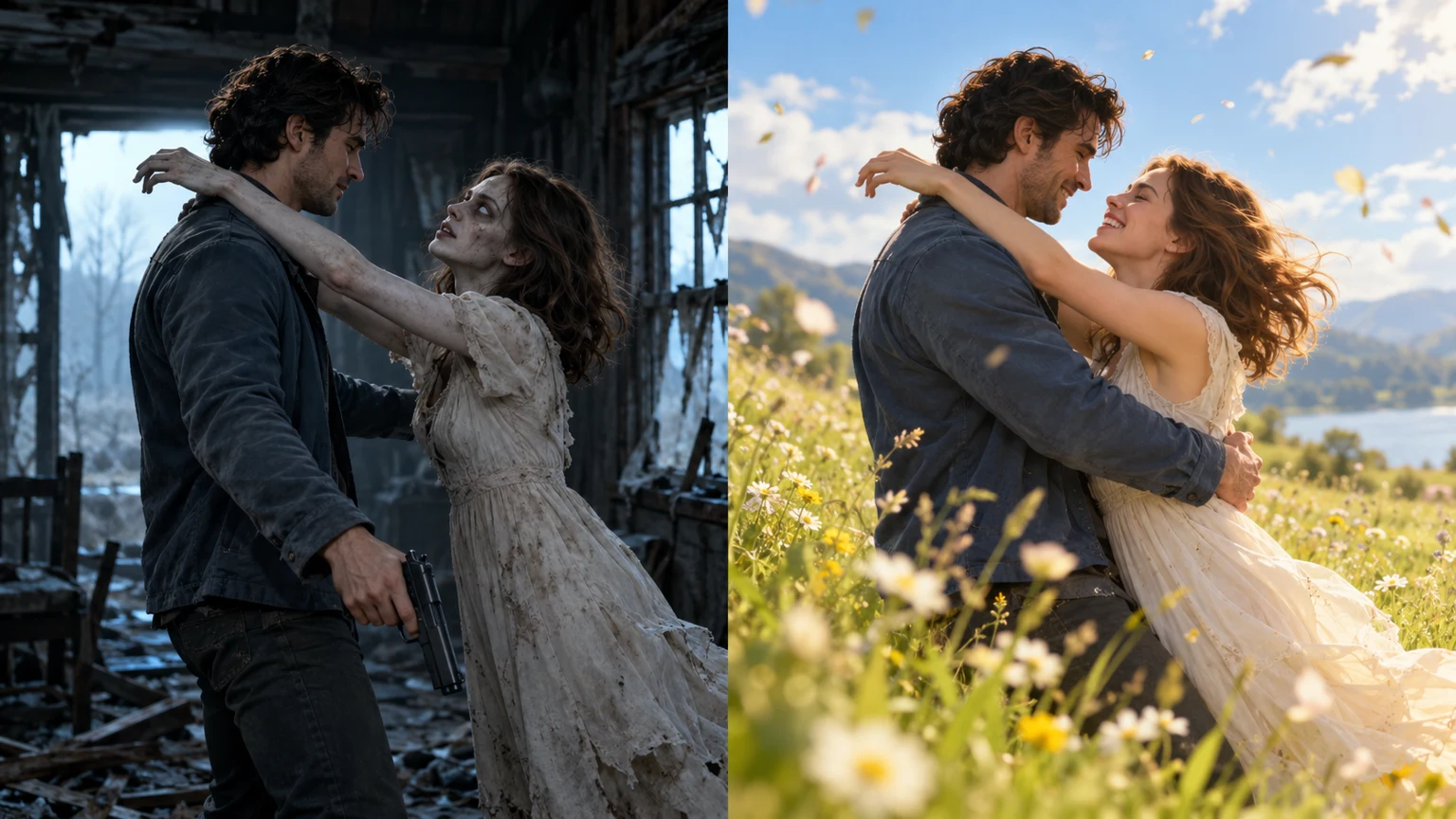
If you saw the zombie hug trend on TikTok or Instagram Reels, you may be wondering whether it was made with a face filter, a CapCut template or a photo-to-video AI model. The key difference is motion: a filter modifies an image, while an AI video model invents frames showing characters moving through a scene.
There are two useful starting workflows: one photo for a zombie transformation, and two photos for a cinematic reunion between a survivor and an infected partner.
Choose the right starting photos
- One-person transformation: a single front-facing portrait with clear eyes, unobstructed face and even lighting.
- Two-person love story: two separate adult portraits with roughly similar face size and lighting. Identify who should appear as the survivor and who should have zombie makeup.
- Use photos you own or have permission to use. Avoid images with heavy filters, obstructed faces or very low resolution.
- Give the model realistic goals. It may preserve broad resemblance while changing hands, facial micro-details or clothing during motion.
Workflow A: make a zombie transformation from one selfie
- Open an image-to-video tool with a suitable reference-photo mode, such as Kling AI, PixVerse, or Dreamina.
- Upload one clear portrait and choose a vertical output if supported.
- Describe a short single shot: gradual pale theatrical makeup, subtle expression change, slow camera movement and mist.
- Generate a short draft and inspect the face at the opening, middle and end of the clip.
- If desired, use CapCut to add audio, captions and a social-friendly ending.
Prompt example:
A cinematic close-up of the same adult person gradually taking on a subtle zombie appearance, pale stage makeup and clouded eyes. Keep facial structure recognizable. Slow head turn and gentle camera push-in in atmospheric fog. Non-graphic horror, consistent framing, no extra subjects.
Workflow B: make a zombie love story from two photos
- Start with ZombieTrend's generator and upload two permitted photos.
- Choose your desired aspect ratio: 9:16 is designed for vertical social viewing; 16:9 is an alternative widescreen format.
- Select the duration and output resolution. The currently supported range is 4–15 seconds (12 seconds by default), with 480P or 720P options.
- Review the one-time $9.99 price before checkout. This is a paid generation, not a free filter.
- Open the order page to watch and download the MP4 when generation and safety review finish.
The intended story can include a tense zombie encounter, an emotional embrace and a flashback-inspired scene. These are creative goals, not guaranteed frame-by-frame shots. When a generation produces motion or facial artifacts, inspect the finished file rather than assuming the prompt was reproduced exactly.
See what a real output looks like
Our published Seedance Mini demonstration includes source portraits and an actual five-second, 480P MP4. We provide this specifically so you can evaluate facial likeness, motion, zombie styling and transitions before purchasing. It is not a still-image placeholder or a fabricated “before/after”.
Common photo-to-zombie-video problems
Faces change during the hug
Overlapping characters and moving heads are hard to synthesize. Cleaner reference photos can help, but no model can promise identical facial details throughout the clip.
Hands or weapons become distorted
Complex props, occlusion and moving fingers can cause generated artifacts. Choose simpler, shorter shots if consistency matters more than elaborate choreography.
The output does not look like the example
Generative outputs are variable. The example demonstrates a real successful render; it does not guarantee the same shots for every pair of photos.
My video is stuck or fails after payment
Use your order page and contact support@zombietrend.art with the order number if delivery fails. See the refund and replacement policy; card refunds are not instant or automatic.
Frequently asked questions
Can I make an AI zombie video without installing an app? Yes, a web-based tool can handle upload and generation. CapCut or another editor is optional for finishing.
Can I use a couple selfie instead of two separate portraits? Try it if the generator supports it, but separate clear faces usually make character roles less ambiguous.
Is a zombie filter the same as image-to-video? No. A static filter produces an image, while an image-to-video model generates moving footage.
Do I need 1080P for TikTok? Not necessarily. Evaluate actual output quality, crop and format. ZombieTrend's current product options are 480P/720P; do not mistake the demo for a 1080P render.
Watch the genuine Seedance clip · Try the generator · Compare the best tools · Free alternatives