Zombie Shooting Flashback: AI Video Shot-by-Shot Guide
How does the viral zombie shooting flashback work? Plan the cannot-shoot scene, zombie hug and memory cut with two portraits and realistic AI video prompts.
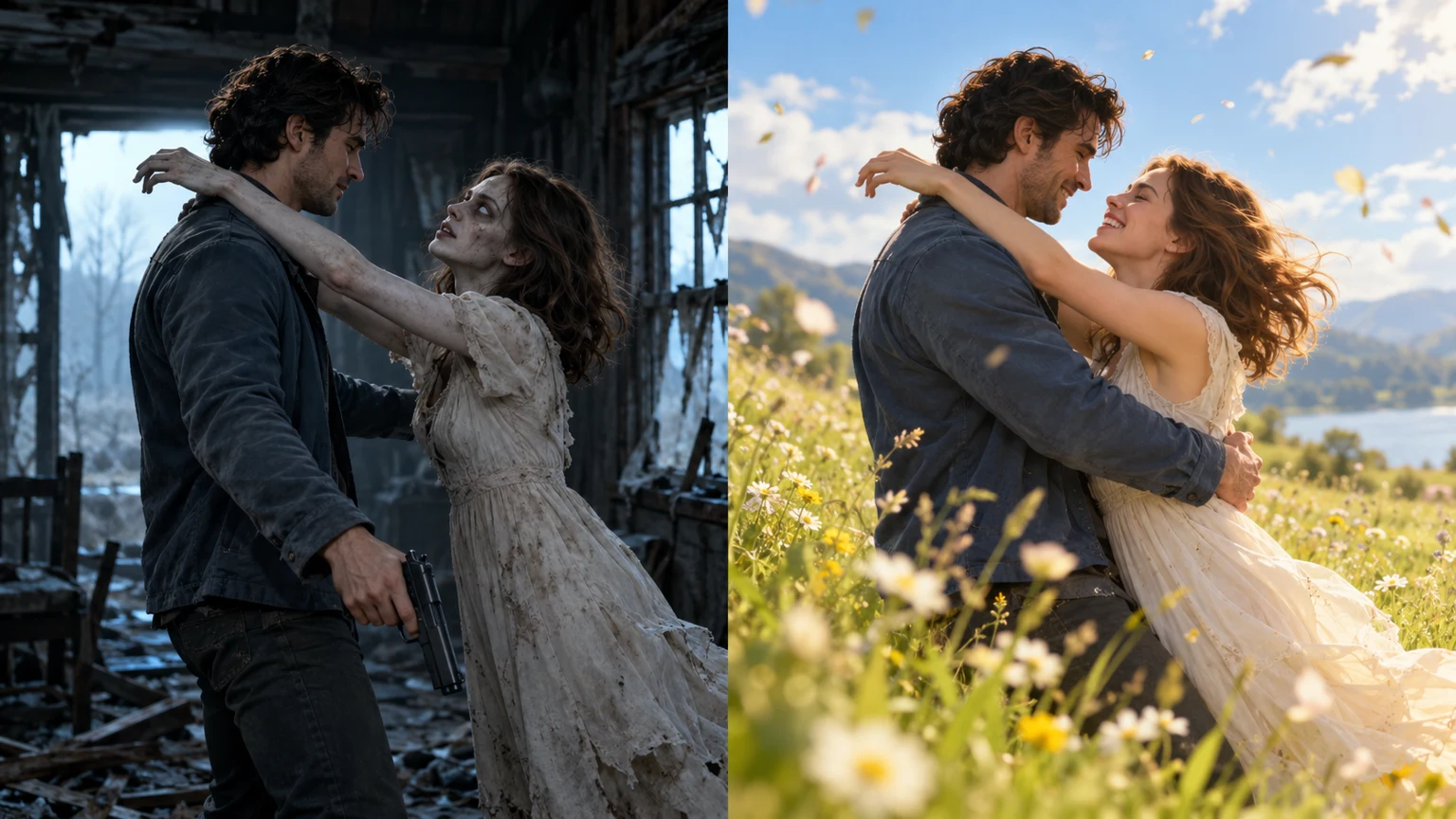
A search for trending zombie shooting flashback is often about one precise filmmaking challenge: how do you turn a scene where a survivor cannot shoot their infected loved one into a believable memory of happier days? This is not quite the same task as searching for a zombie AI generator. Here the camera direction, continuity and transition matter as much as choosing a model.
Below is a storyboard you can adapt to a two-portrait AI video. It is an instructional proposal, not a transcript of a single original video, and specific model shots are never guaranteed.
What makes the cannot-shoot zombie flashback work?
The scene has a visible decision. The survivor sees a zombie and raises the weapon, but recognition breaks their resolve. As the survivor lowers the weapon, the infected partner moves forward. At the moment of contact, the scene turns into a warm, ordinary memory. The emotional story is recognition, hesitation, and remembrance—not a jump scare or a graphic attack.
The visual contrast also helps: cool ruined interiors and pale zombie makeup are set against warm grass, natural skin tones and laughter. If your clip cuts too early, the viewer never sees the decision. If it cuts too late, the flashback can feel unrelated.
A practical four-shot plan for a 12-second request
These timings are guidance only. Seedance 2.0 Mini supports selecting 4–15 seconds, but a generated clip may reorder, omit or simplify shots.
| Proposed beat | Approx. time | What to show | Continuity cue | |---|---|---|---| | Standoff | 0–3s | Survivor with a trembling weapon; infected partner across the room | Keep characters in distinct positions | | Recognition | 3–6s | Close-up of pale eyes and survivor's hesitation | Same faces, clothing and screen direction | | Decision | 6–9s | Weapon lowers; survivor reaches out; infected partner approaches | One clearly readable gesture | | Flashback | 9–12s | Cut on contact to a sunny field with both healthy | Echo the hug and screen composition |
Do not attempt a perfect physical pose lock in every request. A simple hard cut at contact is often an easier goal than an elaborate morph while two faces are moving. If one beat is missing, review the actual MP4 before deciding whether to regenerate.
How to create the scene with two portraits
Choose photos with recognizable faces
Use one clearly visible person in each input. Avoid sunglasses, crowds, strong beauty filters and radically different head angles. You want the viewer to recognize both people in the dark scene and again in daylight.
Assign the two people consistent roles
For the standard ZombieTrend setup, Photo 1 is the survivor and Photo 2 is the infected loved one. Keep that order throughout the story. If you swap reference photos, the roles may reverse; avoid instructions that contradict the chosen template.
Describe actions in order, not as unrelated keywords
A usable prompt can be short and specific:
Two reference portraits, one person in each. Keep identities and clothing consistent. In a dim abandoned kitchen, the person in Photo 1 trembles while pointing a prop weapon toward the infected person in Photo 2. The infected person has pale gray-veined skin and clouded eyes, with no graphic injury. The survivor recognizes their loved one, lowers the weapon, and reaches out. The two move into an embrace. Hard cut at the moment of contact to a sunlit field before the outbreak: the same two people are healthy, holding one another and smiling. Intimate cinematic photography, one continuous short narrative, gentle atmospheric audio, no captions, no logos, no other characters.
This is an editable example, not a claim that every render will reproduce all four beats. For additional variations, see our zombie trend prompts library.
Select video settings before you pay
For a vertical TikTok/Reels result, choose 9:16. For a wide cinematic frame, choose 16:9. The current Seedance Mini generator supports 480P or 720P with 4–15 seconds selectable and 12 seconds the default. ZombieTrend currently lists $9.99 for a single video, not an unlimited-free mode. Review your chosen options at checkout.
Common visual failures and what to change
Why does the AI change the couple's faces?
Image-to-video models may drift when characters turn, hug or move into new lighting. Try two clearer source portraits and simplify the camera motion. Explicitly request the same hair, face shape and clothing. See our face consistency troubleshooting guide.
Why does the gun vanish or change shape?
A short clip competes for limited visual attention. When several quick actions happen together, props can disappear or be redrawn. Make “lower the weapon” one discrete action, then move to the embrace. Do not expect precision prop choreography from every generation.
Why is the flashback not in the last seconds?
Ask for a hard cut after the embrace begins, not a simultaneous dissolve and camera move. Keep the memory scene visually distinct—sunny open field instead of another room.
What if the embrace looks unnatural?
Ask for an approach and a brief two-person hug with both arms visible; avoid “violent leap, spin, kiss and hug” all in a single beat. Movement stability depends on the model and reference photos.
What does a real Seedance output look like?
Instead of assuming the storyboard above has been perfectly generated, examine the documented Seedance Mini video case. It includes both input photos, the original 5s/480P MP4, output frames and technical settings. It illustrates a possible result—not a guarantee for a 12s/720P order.
For the complete upload/checkout workflow, use How to Make an AI Zombie Video, and for the full emotional couple template use the Zombie Love Story generator. To identify a particular viral source clip, read the original video guide.
Should you add music before or after the cut?
Aim for a recognizable sound change at the flashback, but don't identify an unknown piano track as the “official” music. Review the model's generated audio first. If you choose a trending sound in TikTok or Instagram, follow that platform's rules and sound permissions. See Zombie AI Trend music.
Practical takeaway: give the audience time to see the impossible choice, show the lowering gesture, then make the change of mood unmistakable. The finished MP4, not the ideal prompt, is the source of truth.
READY TO CREATE?
Start with two portraits, select a scene, and generate your own clip.